Bring Zalo, Messenger and website chat into one inbox: where to start
Which channels to connect first, how to assign owners, quick-reply templates and what to do in week one so no customer message slips through.
The NEXT OS teamNEXT GROUP
- Published
- Read
- 3 min
Contents
- Why replying in many places loses customers
- Step 1: List your channels and pick the order
- Step 2: Set owner-assignment rules
- Step 3: Write a set of quick replies
- Step 4: Link conversations to the customer record and pipeline
- Step 5: Handle messages after hours
- Your week-one checklist
- Frequently asked questions
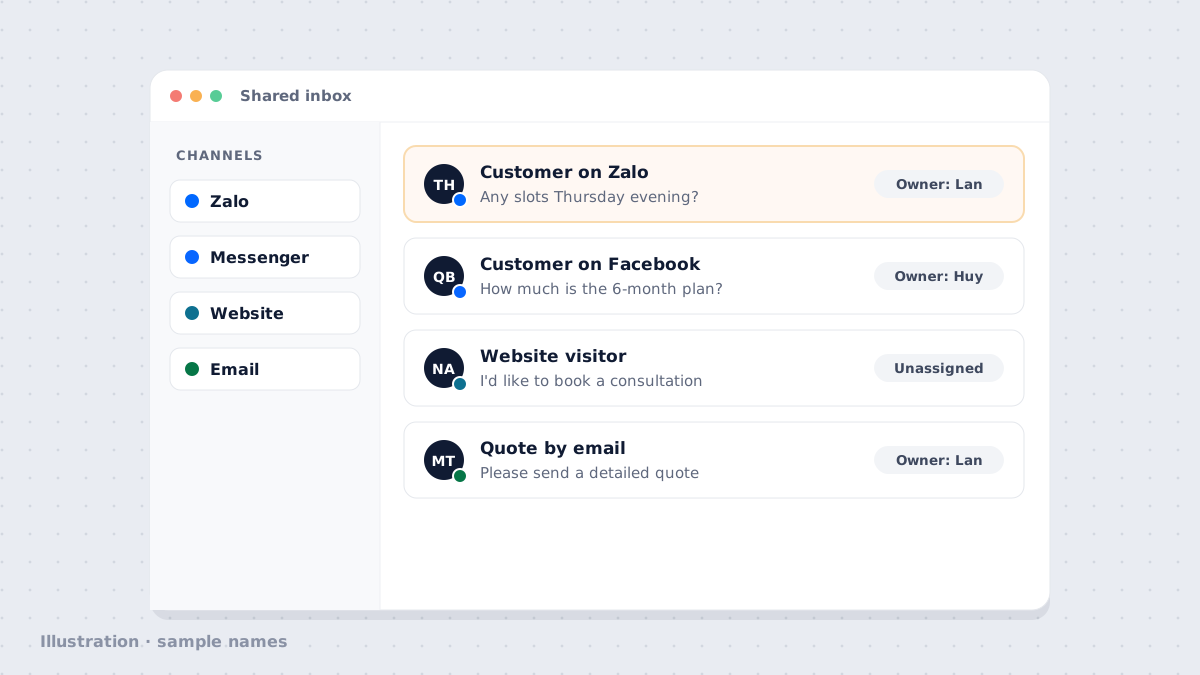
When customers message you on Zalo, Messenger, website chat and email, each channel lives in a different app on a different person’s phone. Messages get missed not because the team is lazy, but because nobody sees the whole picture. Bringing every channel into one shared inbox, with one owner per conversation, is the fastest way to make sure no customer is left waiting.
Why replying in many places loses customers
You may have seen these situations:
- A customer messages the Facebook Page on Friday night and nobody opens it until Monday.
- Two staff members reply to the same customer with two different prices.
- A consultant leaves and takes the whole chat history in their personal Zalo.
- A manager wants to know how many messages are still unanswered today, with nowhere to look.
The common thread: conversations are tied to one person’s device, not to the customer’s record. A shared inbox flips that around.
Step 1: List your channels and pick the order
Don’t connect everything in one day. List the channels customers use to reach you, then rank them by two criteria: which has the most messages, and which gets missed most often.
| Channel | Typically used for | Suggested order |
|---|---|---|
| Zalo OA | Price questions, bookings, photos | Connect first |
| Facebook Messenger | Customers from ads and posts | Connect first |
| Website chat | Visitors reading your service pages | Week two |
| Quotes, contracts, long documents | Week two |
Step 2: Set owner-assignment rules
A shared inbox only works when every conversation has one person responsible. Pick one of three ways to assign, or combine them:
- By channel: one person handles Zalo, another the Facebook Page. Simple, good for small teams.
- Round robin: new messages go in turn to whoever is on shift. Good when volume is steady.
- By existing customer: if a customer already has an owner, new messages go straight to that person. Turn this on for every team.
Write the rules on one page and share it with the team. Without clear rules, the shared inbox becomes a group chat that everyone reads and nobody answers.
Step 3: Write a set of quick replies
Many questions repeat: price, opening hours, address, how to book, return policy. Prepare templates for these so the whole team replies consistently and faster.
- Keep it short, like a chat message, not a formal letter.
- Leave room for the customer’s name and specifics; don’t send the raw template.
- End with a question or a next step, e.g. “Would you prefer a morning or afternoon slot?”
- Review templates monthly and remove the ones nobody uses.
Step 4: Link conversations to the customer record and pipeline
Every conversation should sit on the customer’s record, next to their phone number, appointments and opportunities. When a customer asks seriously about price, create an opportunity on the pipeline straight from that conversation, so the owner knows the next step.
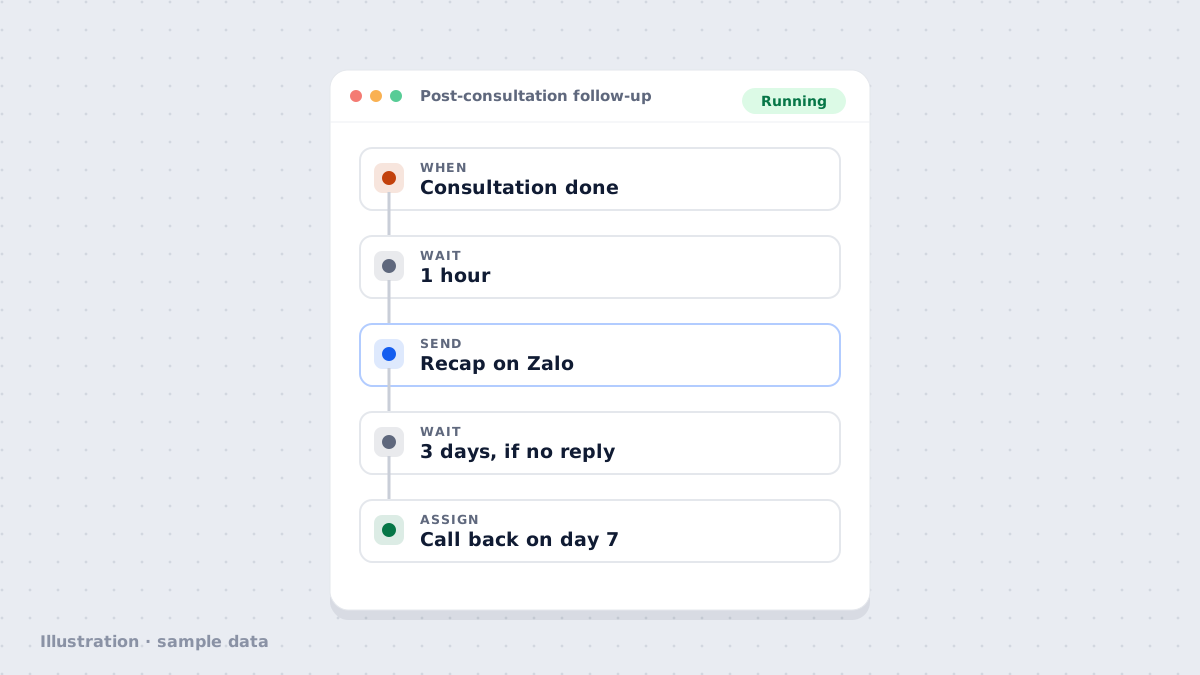
Workflow · New message from any channelRunning
- WhenNew message from Zalo, Messenger, website or email
- IfCustomer already has an owner
- AssignAssign to that owner, otherwise round robin
- Wait15 minutes, if nobody has replied
- SendRemind the team lead
Sample data
Step 5: Handle messages after hours
Set an auto-reply for outside working hours: share your hours, say when you’ll reply and invite the customer to describe their need. If customers often ask questions covered by your documents, turn on an AI Employee to answer right away and pass the rest to the owner.
Your week-one checklist
- Days 1–2: connect the two busiest channels and invite the team to the shared inbox.
- Day 3: agree on owner-assignment rules and turn on automatic assignment.
- Days 4–5: write 10 quick replies for the most repeated questions.
- End of week: review unanswered messages and adjust rules if someone is overloaded.
After week one, add website chat and email. Once every channel is in one place, measuring response time and reply quality finally becomes possible.
Frequently asked questions
Do we have to stop using the Zalo and Messenger apps on our phones?
No, you don't have to. But it's best to agree that customers get answered in the shared inbox, so the history stays on the customer record and someone else can pick up when needed.
Which channel should we connect first?
The channel with the most messages and the one where messages get missed most often. For many Vietnamese businesses that means Zalo OA and the Facebook Page; add website chat and email once the team is comfortable.
Can one conversation be assigned to several people?
Each customer should have one main owner. Others can leave internal notes or be mentioned, but the responsibility to reply belongs to one person.
What about messages outside working hours?
Set an auto-reply with your working hours, or turn on an AI Employee to answer questions covered by your documents and hand the rest to the owner the next morning.
Author
The NEXT OS teamNEXT GROUP
The NEXT OS product and onboarding team at NEXT GROUP. Our posts start from workflows we have set up with Vietnamese businesses and follow the exact steps in NEXT OS.
- Automation
- Omnichannel inbox
- Funnels & websites
- CRM